Hey, I write this blog in French, my native language. AI was used to translate this.
I proofread it but please let me know if you spot anything off. Cheers!
More than 14 years later, Martin Jonasson and Petri Purho’s video Juice it or lose it is still stuck in a corner of my head whenever I’m developing a game.
For those who haven’t seen it, it’s just as relevant today as it was back then, so now’s the time. For those who have seen it, it’s still just as relevant and a rewatch never hurts, so now’s the time.
It’s funny because while looking for it I instinctively searched for Jan Willem Nijman, convinced he was the one behind the video. Even though my search looked more like “William juice conf old”, I still managed to figure out why his name rang more of a bell. He actually made a video in the same style a year later, “The art of screenshake”, on a 2D platformer instead. Really good video too.
Anyway, I see a lot of online mini-golf games, and I get it, it’s often a cool project to start out with. So here are a few examples of best practices and juice you can quickly add to your game to improve it fast. I hope this helps.
Bonus explanations
What I explain in code here refers to Godot 4.7, but I try to keep it broad so it’s applicable to any game engine.
– Shot line
I broke down an example of shot prediction in a previous article if you need it. The only thing that changes here is the texture. For that, I export my texture from Figma and set it to Texture Mode Tile in the Line2D.
– Trails
The simplest option, though not the best for performance, would be to record the ball’s position on every frame, and draw the whole thing with a Line2D:
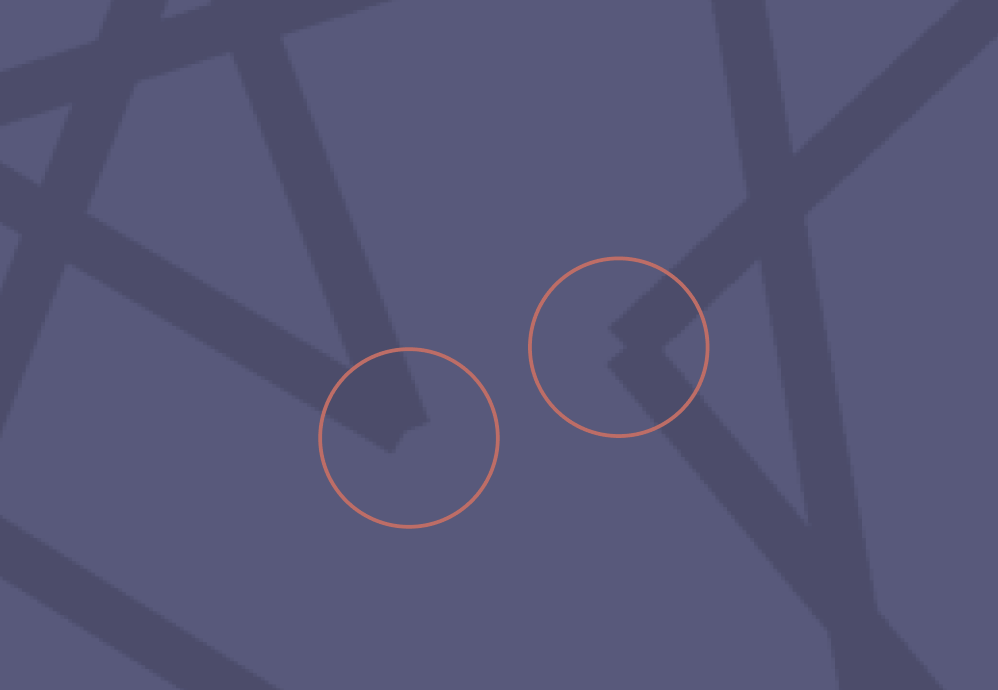
But on top of being costly, when the ball comes to a stop, you often end up with artifacts around the corners. And that’s normal: if two points are positioned in the same spot (when the ball stops, for example), it’s impossible to calculate the angle between the two points.
To avoid that, we have two solutions. Before adding a point, we could compare the last added point and the ball’s position, to see if there’s enough distance between the two. That fixes the problem and on top of that we limit the number of points on the trail, so it’s a good start.
But if we break down what’s happening on screen, it still feels like a shame to create so many points just to draw straight lines.
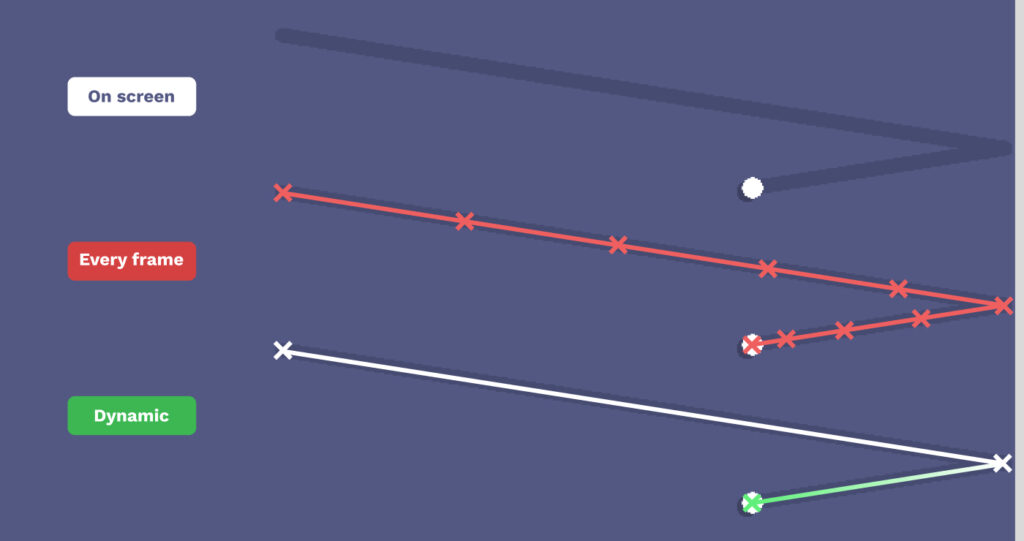
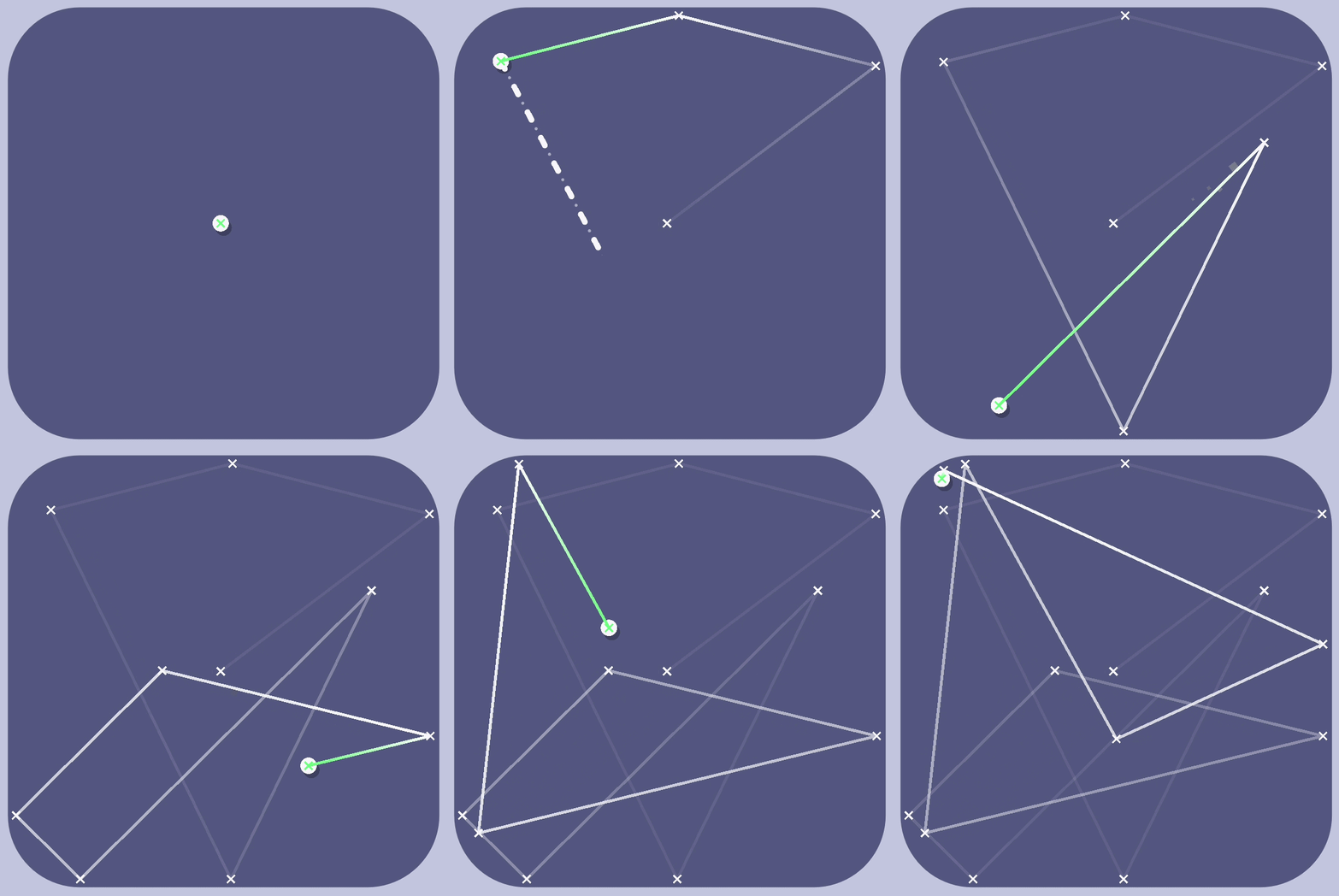
On every frame, rather than creating a point, we could update the last created one to the ball’s position. And as soon as it changes direction, or hits a collision, we can add it to the trail for good.
– Speed trail
Sometimes, the best effects are the simplest. For the speed effect, I do it with a Line2D again. The first point is updated in the _process to always be on the ball’s global_position. The second one? Exactly the same, but with a slight lerp that gives it that offset which creates the speed effect.

You can imagine plenty of improvements from this base (handling bounces, a nicer trail, etc.). But I already find it more than enough for quite a few uses.
– Dynamic sounds
One thing that adds a ton of life is making the sounds more dynamic. Here, I only use two sounds: one for collisions, one for the shot.
The first thing I implement on every sound out of habit is pitch variation:sound_node.pitch_scale += randf_range(-0.1, 0.1)
It really creates a lot more depth, you don’t feel like you’re hearing the same thing over and over. Especially for sounds you’re going to hear hundreds of times.
The second idea, for more realism and variety, is to change the volume based on the shot power / collision speed.
For the shot sound, I remap it based on the shot vector. And for collisions, I remap them based on the ball’s speed.
References in the article:
Juice it or lose it – a talk by Martin Jonasson & Petri Purho
Jan Willem Nijman – Vlambeer – “The art of screenshake” at INDIGO Classes 2013